



Description
Download Windows Media Player Plugin – Free, Secure, In‑Browser Music Control for Firefox
Overview
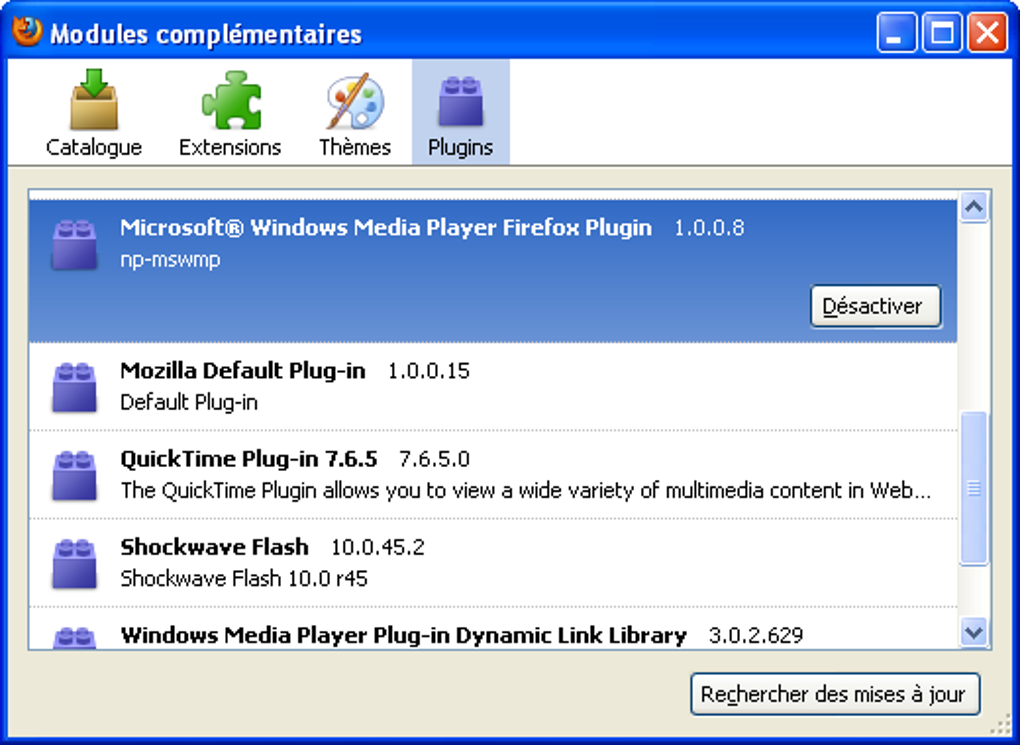
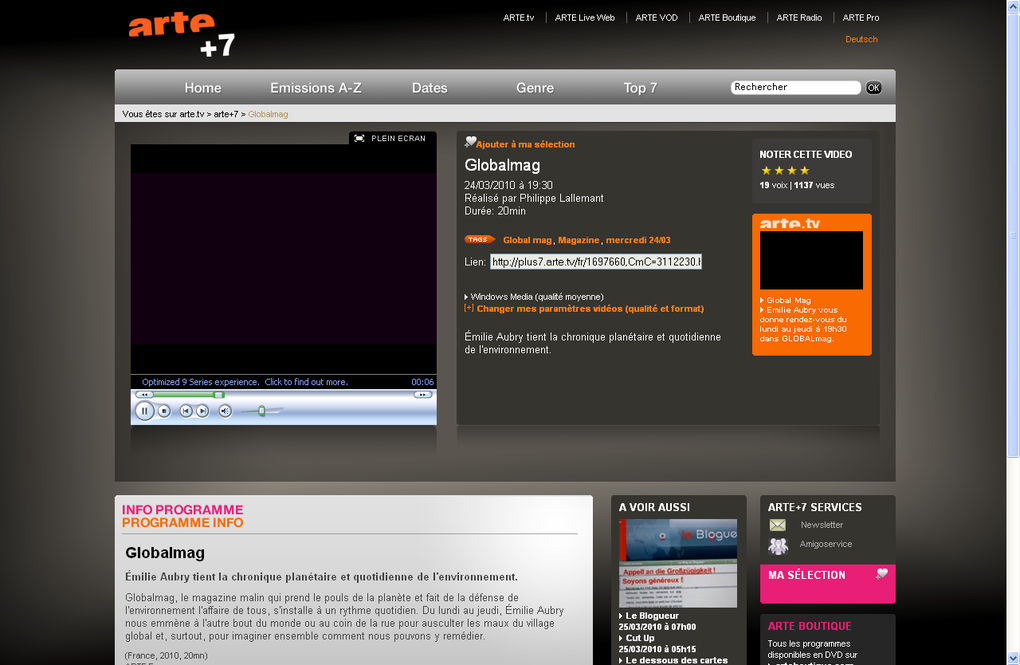
The Windows Media Player Plugin for Firefox brings a compact, fully‑functional Windows Media Player directly into your browser window, letting you enjoy music, podcasts, or other audio while you surf the web. Designed as a lightweight bolt‑on, the plugin eliminates the need to keep a separate media player open in the background and constantly switch between applications. Though originally bundled with Windows XP, an after‑XP version is still available for download and works on most modern Windows installations. The plugin is completely free, safe to install, and integrates seamlessly with Firefox’s tabbed interface, providing a remote‑control‑like experience for your audio library. While it does not yet support 64‑bit Firefox and future Firefox releases may phase out NPAPI plugins, the Windows Media Player Plugin remains a handy solution for anyone who wants to keep the rhythm going while reading articles, browsing social media, or working online.
Key Features & Benefits
- Embedded Windows Media Player window inside Firefox tabs.
- Full playback controls (play, pause, stop, next, previous, volume) without leaving the browser.
- Support for common audio formats: MP3, WAV, WMA, AAC, and Windows Media Audio.
- Playlist management – create, edit, and save playlists directly from the plugin.
- Automatic detection of media files linked on web pages.
- Lightweight installation package – under 5 MB.
- Free to download and use with regular security updates from the developer.
- Compatibility with Windows 7, 8, 8.1, and 10 (32‑bit only).
The combination of these features turns a routine browsing session into a musical experience. Because the plugin runs inside Firefox, it reduces the CPU overhead that would otherwise be caused by running a separate media player. Users also benefit from instant access to their existing Windows Media Player libraries, making the transition smooth and familiar. For podcast enthusiasts, the plugin can stream RSS‑linked audio directly, eliminating the need for a dedicated podcast app. Overall, the Windows Media Player Plugin provides a practical, cost‑free way to keep your soundtrack alive while you browse.
Installation, Usage & Compatibility
Step‑by‑Step Installation Guide
- Visit the official download page and click the Download button for the Windows Media Player Plugin.
- Save the
WMPPlugin.exeinstaller to a known location on your computer. - Close all open Firefox windows to prevent conflicts during installation.
- Run the installer as an administrator (right‑click → Run as administrator).
- Follow the on‑screen prompts – accept the license agreement, choose the default installation folder, and click Install.
- When the installation completes, launch Firefox. You should see a new “Windows Media Player” icon in the toolbar.
- Click the icon to open the embedded player. Use the File → Open menu inside the plugin to load your music folder or individual tracks.
How to Use the Plugin Efficiently
Once the player is visible, you can control playback just like the standalone Windows Media Player. Drag and drop audio files from Windows Explorer onto the plugin window to add them to the current playlist. Use the built‑in search bar to locate tracks quickly. The plugin also remembers the last played position, so you can resume where you left off after restarting Firefox. For power users, keyboard shortcuts (Space = Play/Pause, Ctrl + ←/→ = Prev/Next) work inside the plugin, offering a truly hands‑free experience while you type or scroll.
System Requirements
The Windows Media Player Plugin is compatible with the following operating systems:
- Windows 7 (32‑bit)
- Windows 8 (32‑bit)
- Windows 8.1 (32‑bit)
- Windows 10 (32‑bit)
Note that the plugin does not support 64‑bit versions of Firefox, nor does it work on macOS, Linux, Android, or iOS. Users on unsupported platforms can consider alternative HTML5 audio players or native media apps.
Pros & Cons
What Users Love
- Free and easy to install.
- Seamless integration with Firefox, eliminating the need to alt‑tab.
- Supports a wide range of audio formats.
- Lightweight and low on system resources.
- Playlist creation directly inside the browser.
Areas for Improvement
- No support for 64‑bit Firefox.
- Future Firefox versions may drop NPAPI plugin support altogether.
- Limited to Windows 32‑bit platforms only.
- Lacks advanced visualizations found in modern media players.
- Configuration settings are basic; no equalizer or audio effects.
Frequently Asked Questions
Is the Windows Media Player Plugin compatible with 64‑bit Firefox?
No. The current version of the plugin only works with the 32‑bit build of Firefox. Users running 64‑bit Firefox will need to install the 32‑bit version of the browser or use an alternative audio solution.
Can I use the plugin on Windows 11?
While the installer is designed for Windows 7‑10, many users have reported that it runs on Windows 11 without major issues, provided they are using the 32‑bit version of Firefox.
Will the plugin affect my browser’s performance?
The plugin is lightweight (under 5 MB) and consumes minimal CPU and RAM. For typical browsing and music playback, performance impact is negligible.
How do I update the plugin when a new version is released?
Updates are not automatic. Visit the official download page periodically, download the latest installer, and run it over the existing installation. Your playlists and settings are preserved.
Is the plugin safe from malware?
Yes. The plugin is distributed from the developer’s verified site and is digitally signed. Always download from the official source to avoid counterfeit versions.
Our Verdict
The Windows Media Player Plugin fills a niche that many modern browsers have abandoned – in‑browser audio control without leaving the page. Its free price tag, straightforward installation, and solid playback features make it a valuable addition for Windows users who still enjoy the classic Windows Media Player interface. Although the lack of 64‑bit support and the looming deprecation of NPAPI plugins are real concerns, the plugin delivers a reliable experience today. For anyone who wants a quick, no‑cost way to keep music playing while researching, shopping, or scrolling social feeds, this plugin remains a solid choice.
Conclusion & Call to Action
If you’re looking for a hassle‑free method to enjoy your favorite tunes while browsing, the Windows Media Player Plugin for Firefox is worth a try. It’s free, secure, and integrates directly into the browser, giving you instant access to your existing media library. Simply download the installer, follow the quick setup steps, and you’ll have a fully functional media player at your fingertips. Remember to keep an eye on future Firefox updates, as the plugin may require a replacement solution when NPAPI support ends. For now, click the button below to start your download and bring music back to your browsing experience.
Guides & Tutorials for Windows Media Player Plugin
How to install Windows Media Player Plugin
- Click the Preview / Download button above.
- Once redirected, accept the terms and click Install.
- Wait for the Windows Media Player Plugin download to finish on your device.
How to use Windows Media Player Plugin
This software is primarily used for its core features described above. Open the app after installation to explore its capabilities.
User Reviews for Windows Media Player Plugin 0
No reviews found





